Creating Account Members

FamTiVi is built for families, educators, and teams to create safe, curated video experiences for members. Member accounts are the heart of this experience—each member has access only to content assigned specifically to them, ensuring a personalized, distraction-free viewing environment.
Parents, team owners, or administrators can create members and manage their schedules, playlists, and assigned topics. Members can also be grouped into teams, allowing access to any content scheduled or assigned to that team.
Here’s everything you need to know about creating and managing members in FamTiVi.
1. Create a New Member
Creating a member is easy:
Go to the Members page on your FamTiVi web app.

Click the Add Member button.
A modal form will appear—fill in the member’s details such as name, birth year, and any relevant settings.
Submit the form to create the member.
By default, the new member is automatically added to the default team, but you can assign them to other teams as needed.
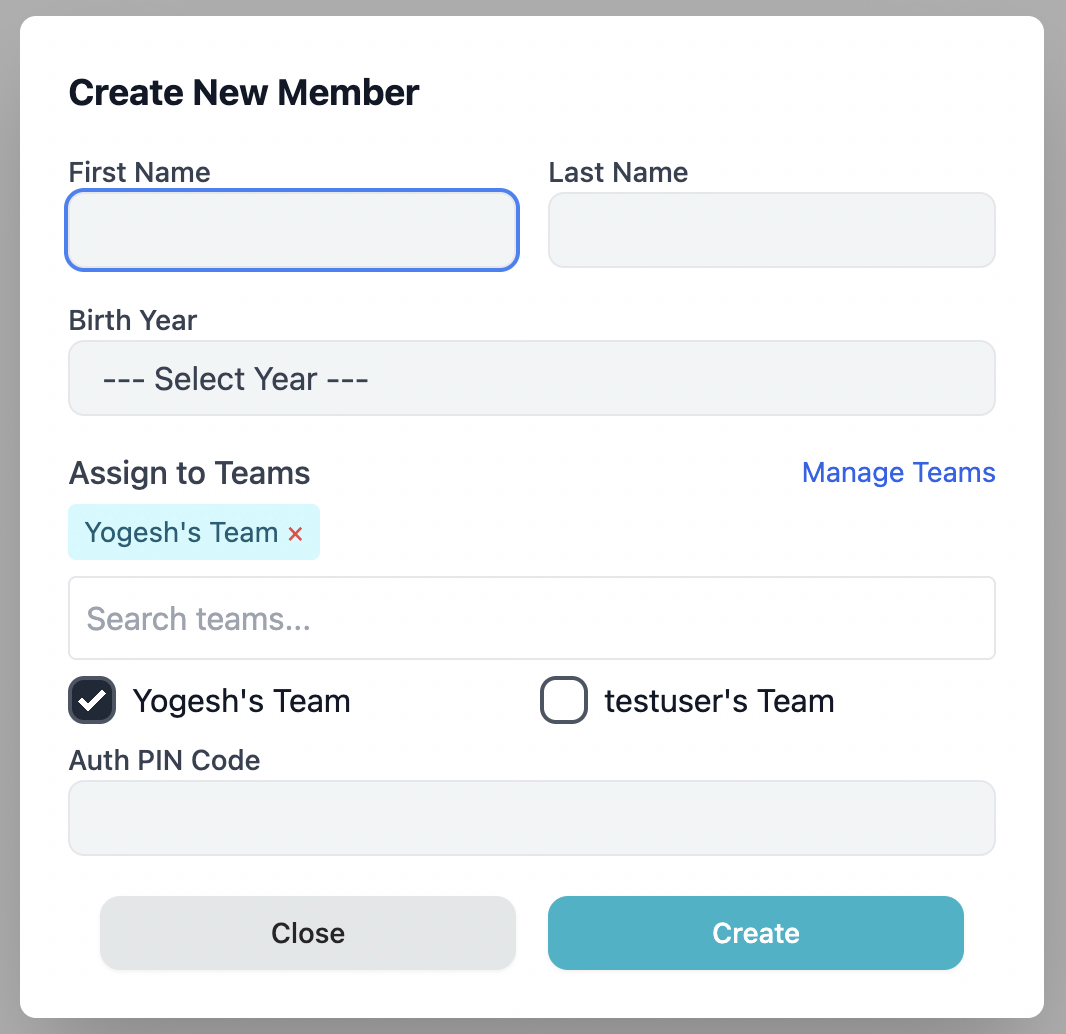
2. Assign Members to Teams
Teams allow members to access content that’s scheduled or assigned to the team.
- After creating a member, you can assign them to any team by clicking on teams icon.
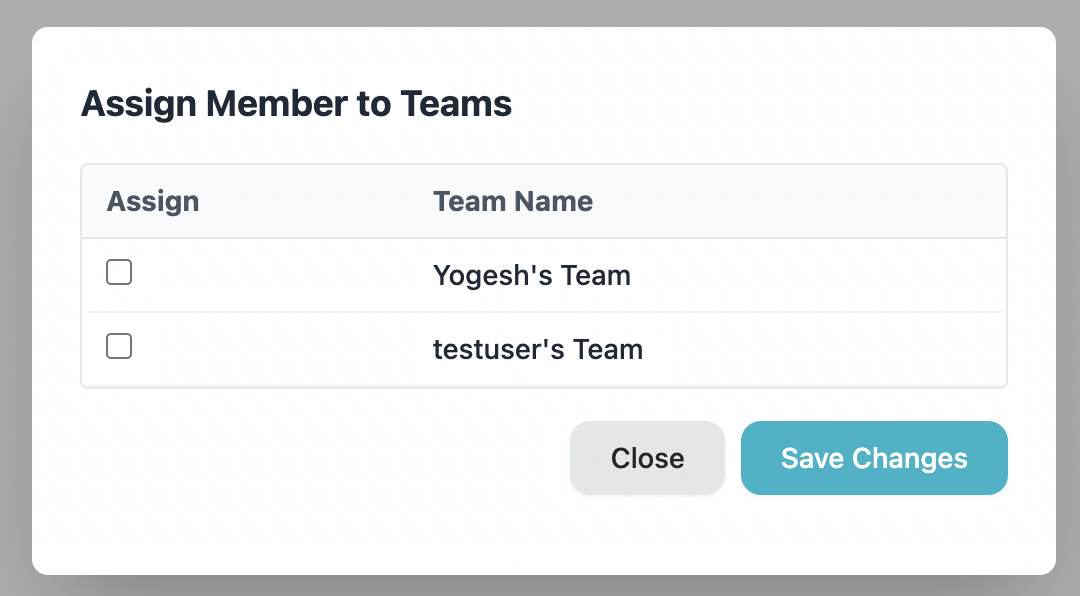
- Any topics scheduled for the team will automatically be available for all members in that team.
- This ensures members always see the right content without confusion or overlap.
3. Set a Member PIN for Mobile Authentication
For extra security and control, you can set a PIN for each member:
- This PIN controls access to the member’s account in the mobile app.
- Once enabled, anyone trying to log in as that member must enter the PIN first.
- This ensures only authorized users can access a member profile.
4. Member Experience on Mobile App
Once a member account is created:
- Open the FamTiVi mobile app.
- Log in using your FamTiVi credentials (or Apple/Google Sign-In if supported).
- Choose the member profile you want to view.
The member will only see content created or assigned for them—playlists, videos, and scheduled topics.
If PIN control is enabled, the user must enter the member PIN to access the account, ensuring secure, individual access.
5. Benefits of Using Member Accounts
- Personalized viewing: Each member sees only their own content.
- Safe & controlled environment: Parents and team owners can control what members access.
- Team-based scheduling: Members automatically get access to content assigned to their team.
- Mobile PIN security: Prevent unauthorized access to member profiles.
Get Started with Members Today
Creating member accounts is simple but powerful. Set up profiles for your children, students, or team members, assign them to teams, and control access with PINs if needed.
This ensures every member has a personalized, secure, and distraction-free Tivi experience on both web and mobile apps.